



MAKE YOUR PC QUIETER BY MASTERING FAN CURVES
A well-tuned fan curve can make a major difference in how a PC sounds and performs. Understanding how they work can help reduce unnecessary noise while keeping components properly cooled.
WHY FAN SPEED CHANGES SOUND MORE ANNOYING
Many users consider the sound of constantly changing fan speeds more annoying than a relatively loud fan running at a steady speed. These speed changes often occur in response to sudden increases in component temperature.
Fans that use PWM control connect to the motherboard using a 4-pin connector, while non-PWM fans use a 3-pin connector and are controlled through voltage regulation.
Fan behavior can be managed using a fan curve, which is a simple graph with temperature on the horizontal x-axis and fan speed on the vertical y-axis. By default, most systems use a linear fan curve, where fan speed increases evenly as temperature rises. Although a linear fan curve may not provide the quietest operation or the most efficient cooling, it works well as a general-purpose solution for most PC fans, regardless of their location or role in the system.

WHY DEFAULT FAN CURVES CAUSE NOISE FLUCTUATIONS
A PC is prone to sudden bursts of activity. These spikes can occur when opening multiple browser tabs, launching a game or a heavy application, or even during background processes such as Windows updates or antivirus scans. Each time this happens, the temperature of the CPU and GPU rises quickly but briefly.
Fans set to a linear curve respond to these fluctuating temperatures by ramping up and down whenever there is activity on the PC, creating the familiar “whoosh” sound. One way to reduce this behavior is to set a custom fan curve.
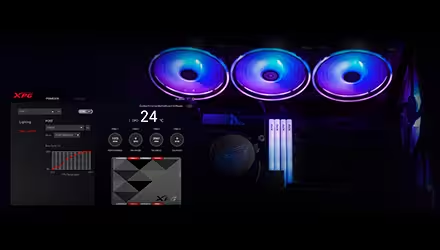
The best way to do this is through the BIOS, where you can set up custom fan curves for both case fans and CPU fans. Beginners who are not yet comfortable with accessing the BIOS can use software like the XPG PRIME, which allows supported fans connected through the XPG PRIME Box to be configured from within Windows.
For GPU fan control, the GPU manufacturer’s software or a separate third-party utility is often required.
Power supplies also include their own cooling fan, and some high-end models allow this fan’s behavior to be customized. For example, the FUSION 1600W Titanium is a digital PSU that lets users adjust its fan curve directly through the XPG PRIME interface.
HOW TO BUILD A BETTER FAN CURVE
When setting up a fan curve, you must strike a balance between noise and cooling efficiency. A curve with a sharp upwards slope prioritizes lower temperatures but causes fans to ramp up and down in speed more frequently. A smoother, flatter curve allows slightly higher temperatures in exchange for more consistent fan speeds.
By keeping the fan curve flat below a certain temperature threshold, such as 60°C (140°F), but at a higher base speed, you can reduce frequent fan speed changes while maintaining consistently low temperatures. You can also configure fan hysteresis, which introduces a short delay before the fans change their speed, preventing brief temperature spikes from immediately affecting fan behavior.
MATCHING THE FAN CURVE TO YOUR PC USE CASE
If you use your PC in a warm environment without ample airflow in the case, a steeper fan curve is recommended to better control temperature. In cooler environments, you can opt for a flatter fan curve to reduce noise.
Similarly, a PC used mainly for light tasks like web browsing or office work benefits from a quieter, flatter fan curve. For gaming or other heavy workloads, a steeper curve is recommended. In these cases, combining fan hysteresis with a curve that starts flat and becomes steeper at higher temperatures helps balance cooling performance and noise levels.